Help & setup guide
From zero to a working WhatsApp AI agent in about 10 minutes.
1. Link your WhatsApp
- Open 📱 Connect and click Link / Connect. A QR code appears.
- On your phone: WhatsApp → ⋮ → Linked devices → Link a device, and scan the QR.
- The status badge turns connected. That's it — your own number, no Business API, no new SIM.
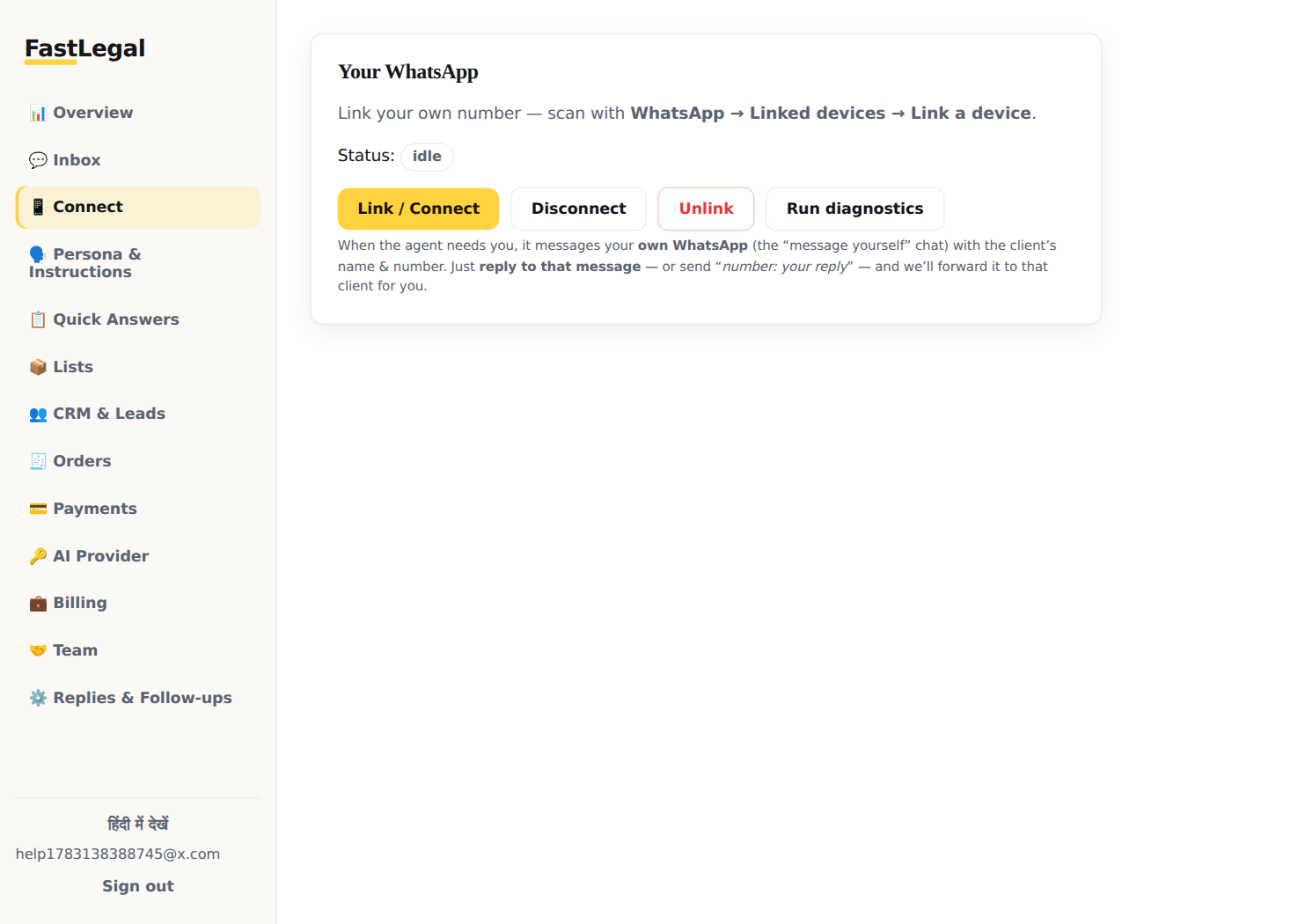
The Connect panel. Use “Run diagnostics” anytime to check why something isn’t replying.
2. Teach it how to talk
- In 🗣️ Persona & Instructions, fill your name, business name and what you do.
- Pick a style (friendly / formal / brief) and add your own instructions — e.g. “Always confirm delivery address before finalising an order.”
- After linking WhatsApp, click Learn my style — the AI studies how you actually text (it re-learns daily), so replies sound like you, in your language: Hindi, Hinglish or English.
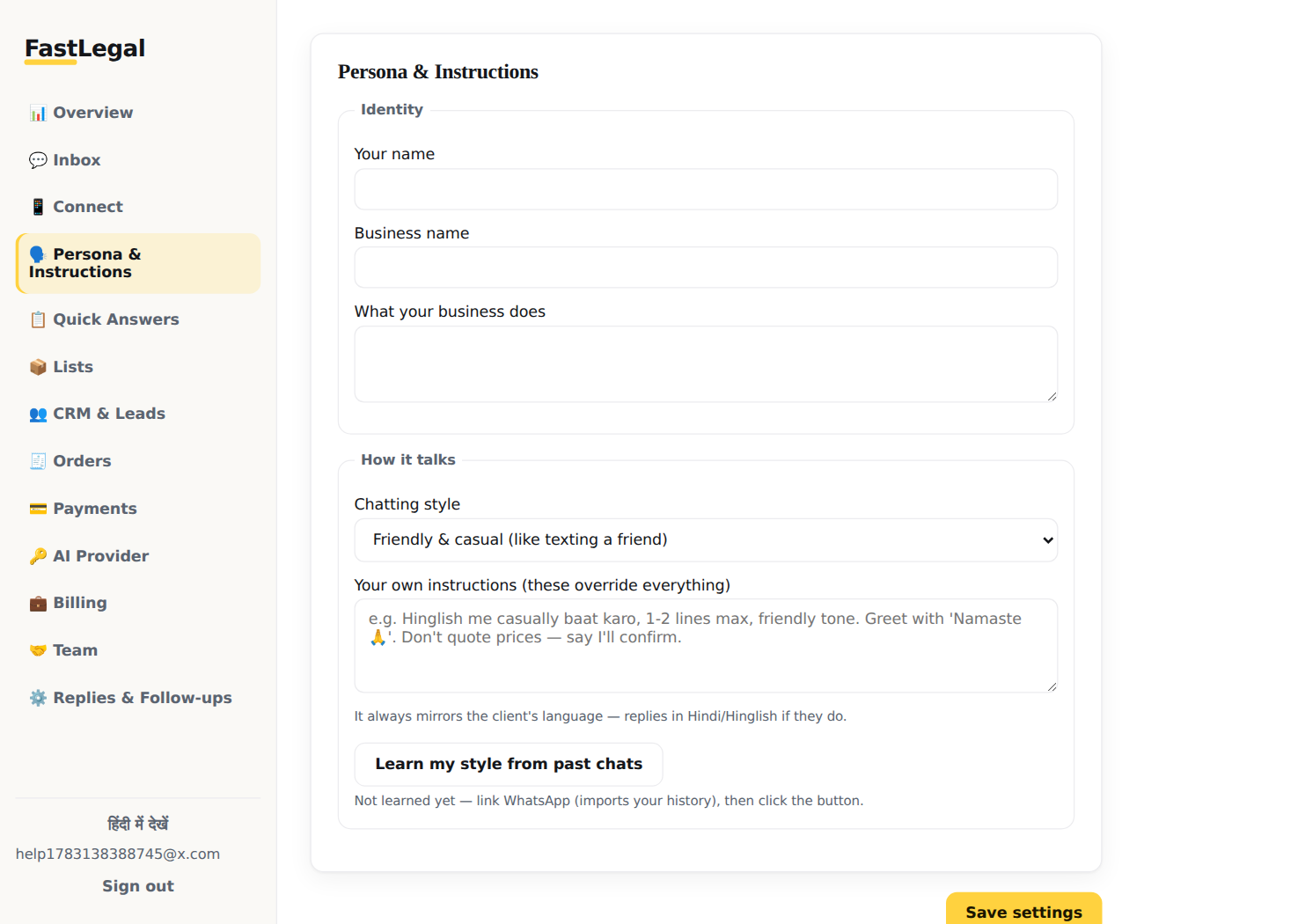
Your instructions always outrank everything else the AI knows.
3. Add your products or services
- Open 📦 Lists and pick your business template — grocery, restaurant, salon, pharmacy, clinic, coaching and more. It arrives with sample items, agent instructions and (where relevant) reminder settings — edit anything.
- Add rows one by one with the form, or paste many at once as CSV. Add a 📷 photo to any row — the AI sends it when a customer asks to see the item.
- For reminder lists (EMI, GST, appointments): keep a
phoneand a due-date column, enable reminders, set days-before and the message template. Reminders go out automatically every day.
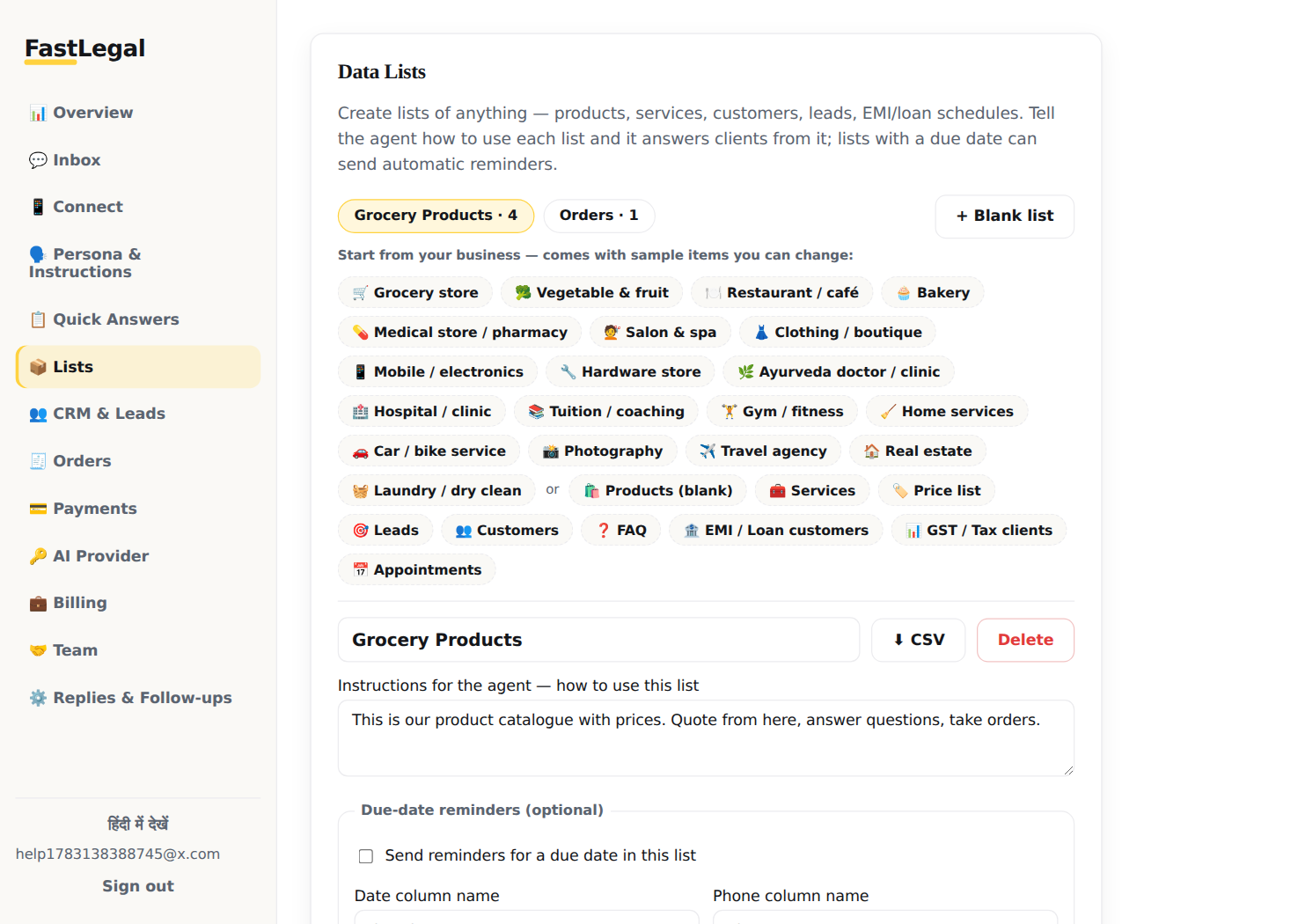
Templates come pre-filled — a grocery store is selling-ready in one click.
4. Set up payments
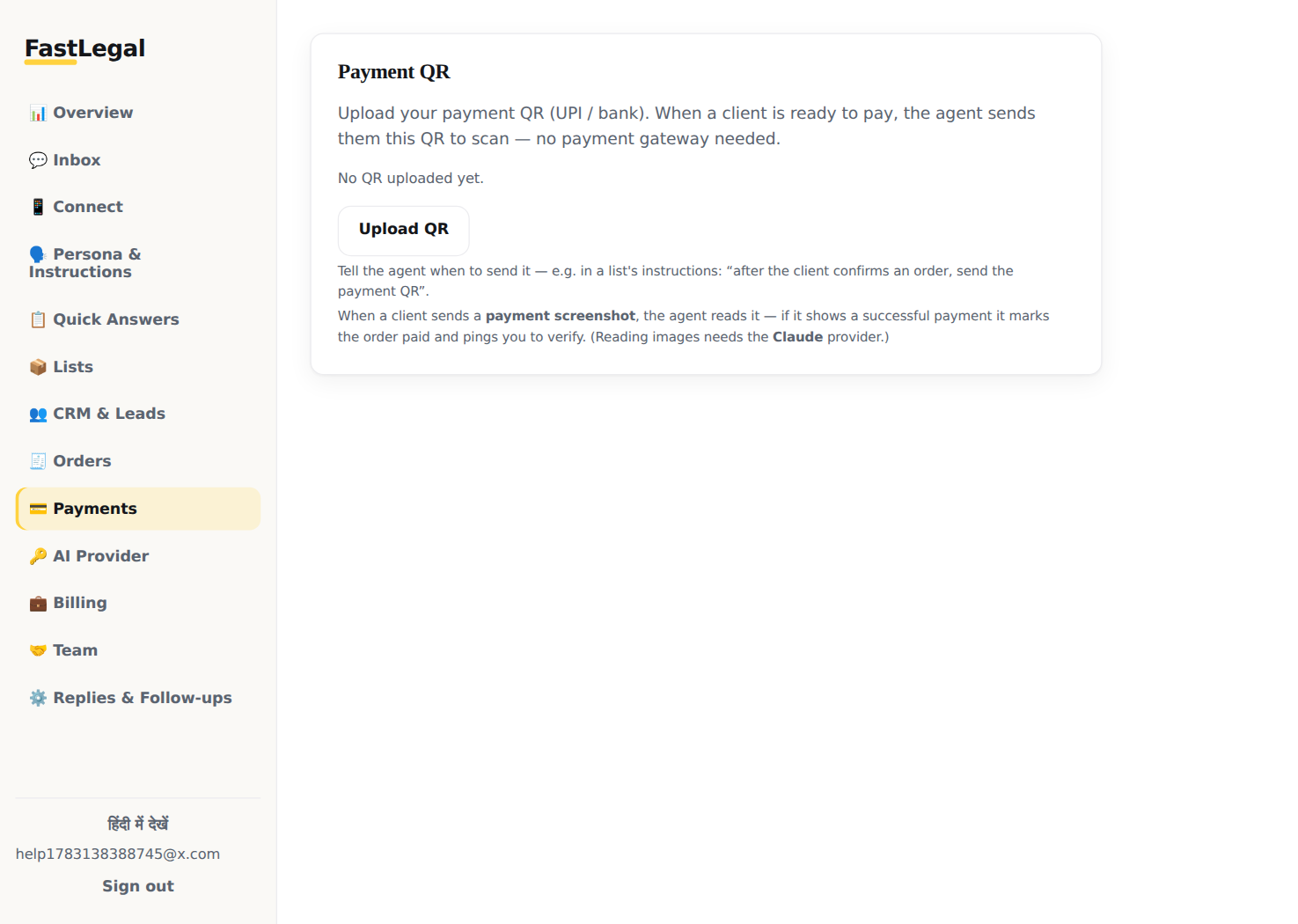
- Open 💳 Payments and upload your UPI / bank QR image (PNG or JPG).
- When a customer wants to pay, the AI sends this QR with the amount. If they send a payment screenshot, the AI reads it — a successful payment marks the order paid and notifies you to verify.
5. Turn on auto-replies
- In 🔑 AI Provider, paste your Anthropic (Claude) or DeepSeek API key and click Test key.
- In ⚙️ Replies & Follow-ups, set Reply mode → Auto and save. Optionally set business hours, reply delays (so replies feel human), follow-ups for quiet chats, and block/allow lists.
- Send a test message from a friend's number — you should get a reply in your style.
6. Day-to-day: Inbox, Orders, CRM
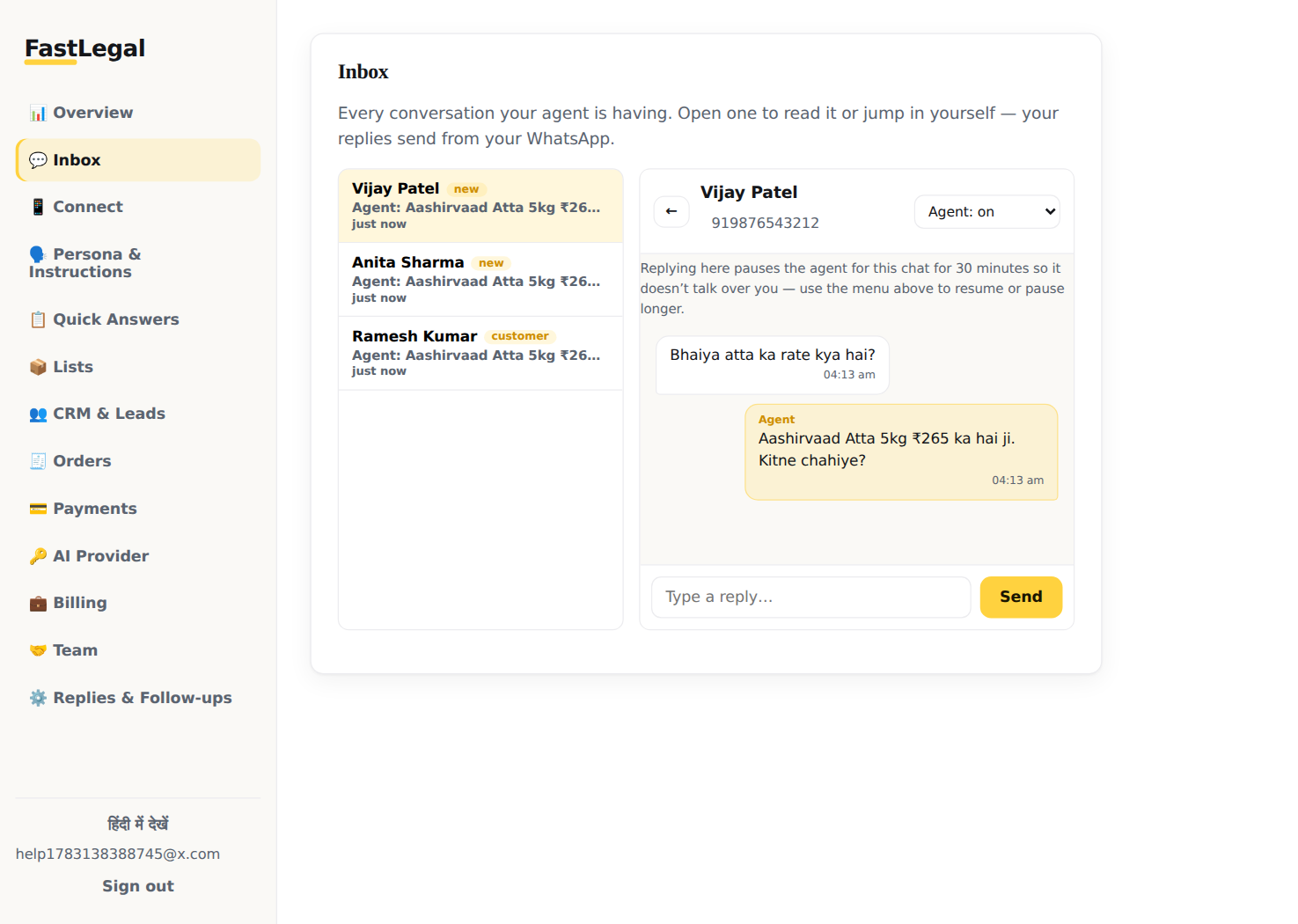
💬 Inbox shows every conversation live. Reply from here anytime — the AI pauses for 30 minutes in that chat so it never talks over you.
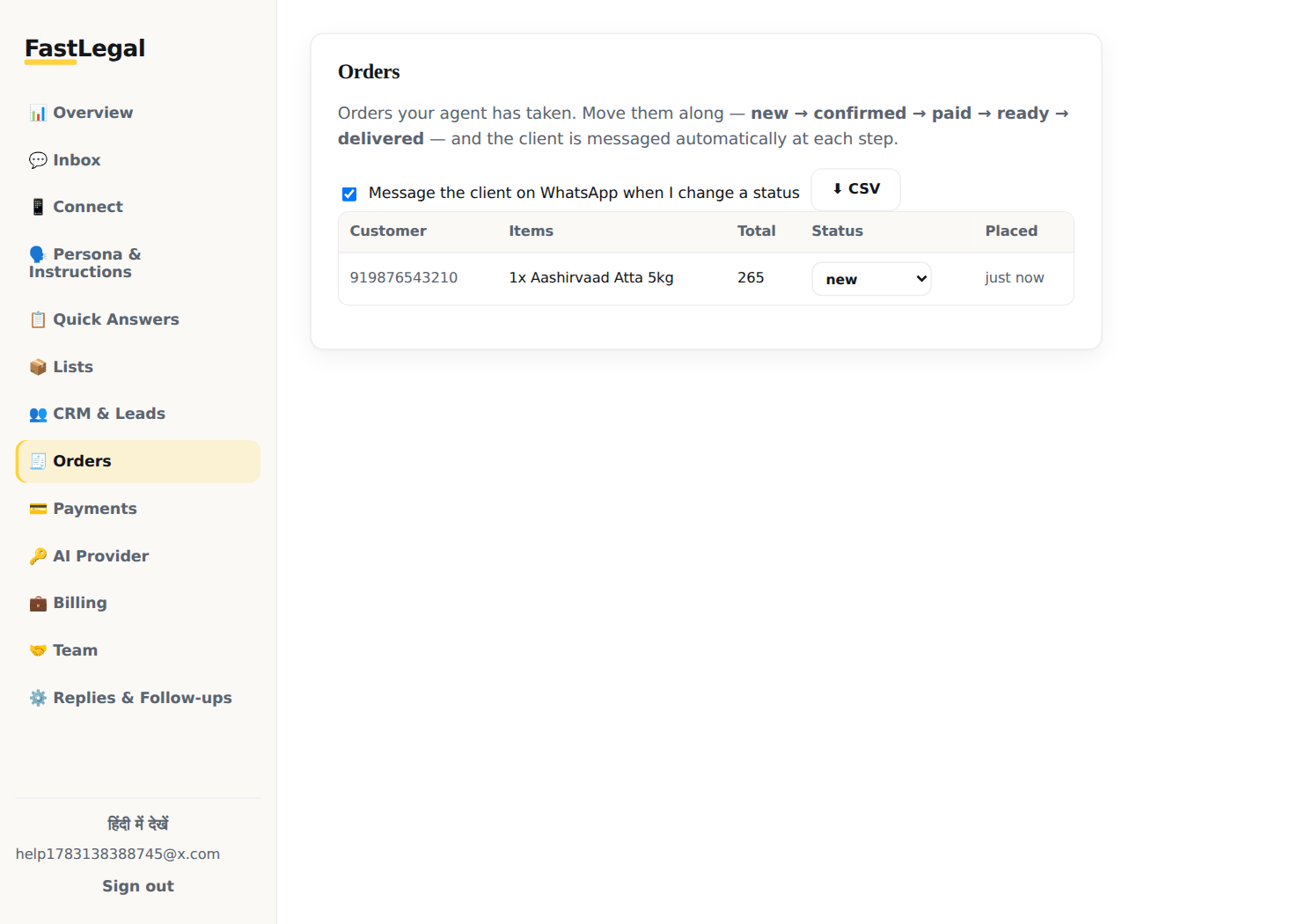
🧾 Orders lists everything the AI has sold. Move an order to confirmed → ready → delivered and the customer is messaged automatically at each step.
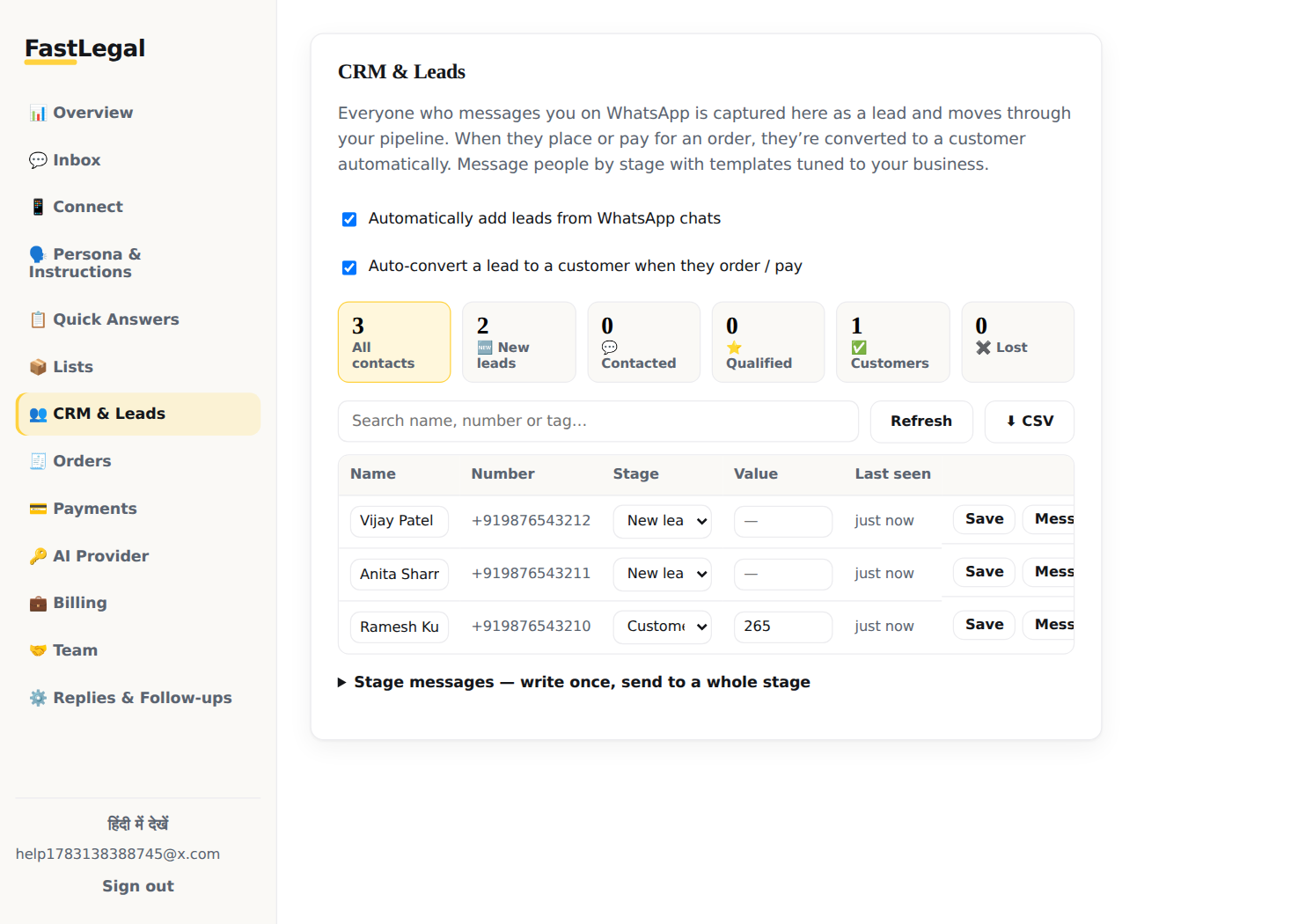
👥 CRM & Leads captures everyone who messages you as a lead, moves them through your pipeline, and auto-converts them to customers when they buy. Message a whole stage at once (e.g. a comeback offer to “Lost”).
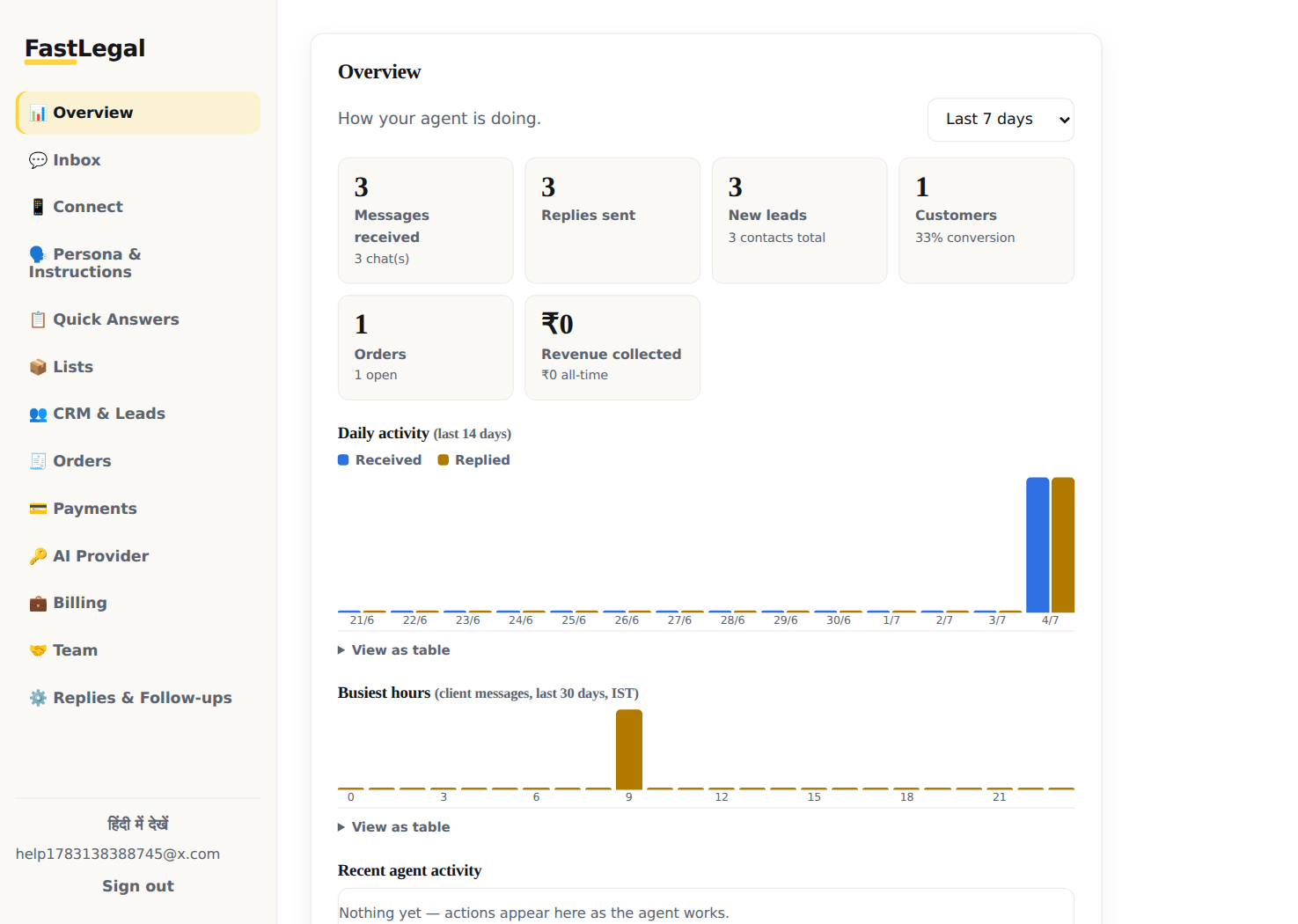
📊 Overview shows messages handled, leads, orders, revenue and everything the agent did recently.
7. When the AI needs you
When the AI is unsure, it messages you in your own WhatsApp (the “message yourself” chat) with the customer's name, number and question. Just reply to that message — FastLegal rewrites your answer naturally and sends it to the customer.
Useful self-chat commands:
#pause 919876543210 2h— stop the AI for that customer for 2 hours (also45m,1d; default 8h)#resume 919876543210— switch it back on919876543210: your message— send a message to any customer via the AI
Troubleshooting
The agent isn't replying at all
Open Connect → Run diagnostics — it checks everything at once. The usual causes, in order:
1) Reply mode is OFF — set it to Auto in Replies & Follow-ups and save.
2) No / invalid API key — test it in AI Provider.
3) WhatsApp disconnected — a red banner appears; click Reconnect now.
4) Trial/subscription expired — check Billing.
5) The sender is blocked or not on your allowlist.
6) You took over that chat — it's paused; resume from the Inbox thread header.
Replies are slow
That's usually intentional: the reply delay (Replies & Follow-ups) waits for the customer to finish typing their burst of messages, then replies once with full context — it reads more human and gives better answers. Lower the min/max delay for faster replies.
It replied to a message with “couldn't decrypt” problems / ignored a contact
Messages from some WhatsApp Business contacts occasionally fail to decrypt on linked devices (a WhatsApp limitation). Diagnostics shows this as CIPHERTEXT/decrypt failures. Re-linking usually fixes it; it mainly affects Business-app senders.
The QR code won't scan / keeps refreshing
QRs rotate every ~30 seconds — that's normal, just scan the current one. Make sure your phone has internet, and that you haven't hit WhatsApp's 4-linked-devices limit (unlink an old device first). If it still fails, click Unlink, then Link / Connect again.
WhatsApp got disconnected by itself
Phones sometimes drop linked devices (long offline, app reinstall, or WhatsApp security review). You'll get an email alert and a red dashboard banner. Click Reconnect now; if the link was fully removed, scan the QR again. Keep your phone online at least once every 14 days — WhatsApp unlinks devices whose phone stays offline too long.
The payment QR isn't being sent
Check Payments shows a preview of your uploaded QR (PNG/JPG/WebP under ~1.3 MB — an oversize upload is rejected with a message, not saved silently). If the preview is there, the agent sends it whenever a customer asks how to pay.
Product photos aren't going out
Each list row needs either an image column with a public URL, or an uploaded
photo (📷 button on the row). The AI matches the customer's words against the row's fields —
make sure item names are in the list.
Voice notes get “please type your message”
Voice-note understanding needs a transcription key on the server (GROQ_API_KEY
or OPENAI_API_KEY). Without one the agent politely asks the customer to type.
Reminders didn't go out
The list needs reminders enabled, correct date and phone column
names (matching your actual column headers), dates in YYYY-MM-DD or
DD/MM/YYYY, and your WhatsApp must be connected at send time. Each row is
reminded at most once a day, and bulk sending is paced with a daily safety cap that grows
as your account matures.
Broadcast stopped early / “daily limit reached”
That's the anti-ban governor protecting your number: bulk messages are spaced 4–7 seconds apart with a daily cap (100/day in week one, then 250, then 500). It resets at midnight. This keeps WhatsApp from flagging your number — a ban costs far more than a slow broadcast.
I forgot my password
On the sign-in page click Forgot password?, enter your email, and open the link we send (valid 30 minutes, works once). You'll set a new password and land straight in your dashboard.
Is my data safe? Can WhatsApp ban my number?
API keys and platform secrets are stored encrypted; your WhatsApp session stays on your server. To keep your number safe, FastLegal humanizes reply timing, paces bulk sends and caps daily volume. Avoid cold-messaging strangers in bulk — reply-based automation (people message you first) is the safe pattern.
Still stuck? Email support with a screenshot of Connect → Run diagnostics.